

Guides
How to Sync Printify Mockups to Shopify in Bulk
Stop uploading mockups one by one. Learn how to batch-generate and sync Printify mockups directly to Shopify using templates and queued bulk workflows.
How to Sync Printify Mockups to Shopify in Bulk
If you’re running a print-on-demand store, you already know the worst part of the job. It isn’t coming up with new design ideas. It’s the soul-crushing repetitive work of publishing them.
When you sync Printify mockups to Shopify in bulk, you fundamentally change your business model. You move from being a designer who occasionally updates a store, to a publisher running a high-volume catalog. But default tools make this painfully slow. Generating images, downloading them, opening Shopify, matching variants, and uploading files one by one destroys your profit margin before you even make a sale.
A better bulk workflow connects your integrations, uses print templates, and batch-submits mockups so you can push products live without losing your mind.
Key takeaways
- Manual mockup generation kills scaling potential due to the sheer time cost of downloading and re-uploading assets.
- Centralizing your integrations lets you manage the entire pipeline from one dashboard.
- Print area templates are the secret to keeping your branding and sizing consistent across dozens of listings.
- Batch mockup generation lets you queue up to 20 products at a time, drastically cutting down repetitive clicks.
- Always monitor your publishing status queue to catch missing print files or variant errors before they reach your live store.
The mathematical reality of manual syncing
Setting up a single Printify product, generating its mockups, and pushing it to Shopify takes about five minutes if you’re fast.
That doesn’t sound terrible. But what happens when you have a winning design and want to roll it out across 20 different apparel styles? That’s nearly two hours of clicking buttons. You aren’t building a business at that point. You’re just a very poorly paid data entry clerk.
Every minute you spend mapping variants and waiting for images to load is a minute you aren’t spending on marketing or creating the next bestseller. The friction of the old path forces you to launch fewer products. And in the POD game, volume and iteration are how you win.
A better model: Template-driven bulk operations
You don’t need five tools to fix this. You just need a tighter workflow.
Instead of treating every product like a custom, artisanal project, you need to treat your catalog like a software pipeline. This means standardizing your layouts with templates, grouping your uploads, and letting a queue system handle the heavy lifting.
When you use Mockup Maestro, you handle the design-to-publish process in one place. You establish a template, drop your designs in, generate the visuals, and let the system talk to Shopify. It’s a structured, guided path that removes the guesswork from scaling your POD store.
How to configure your bulk mockup workflow
Ready to speed things up? Here is how you map out your publishing pipeline using Mockup Maestro.
Step 1: Connect your integrations
You can’t automate what isn’t connected. Head over to /dashboard/settings and open your integrations tab.
Link your Printify account—which connects securely via the Printify API—and connect your Shopify store. Once your store credentials are saved and linked, you have a direct pipeline. You won’t have to bounce between browser tabs to check if a connection worked because the settings hub shows you the active status instantly.
Step 2: Ingest your designs
Go to your design library and drop your files into the upload manager. You can drop up to 50 files per batch.
The upload queue runs in the background. It shows you exactly what’s preparing, what’s processing, and what’s complete. If a file fails because it’s too large—the limit is 50 MB per file—you’ll see a failed status with a clear retry option.
Step 3: Build your print area templates
This is where you buy your time back.
Instead of manually resizing your artwork on every single t-shirt, create a Print Area Template. Navigate to your Printify templates workflow and configure your placement rules. When you apply a design to this template later, the system knows exactly how to position it. Your designs stay consistent. Your brand looks professional.
Step 4: Queue your mockups
Now for the visual heavy lifting. Open the Bulk Mockup Generator.
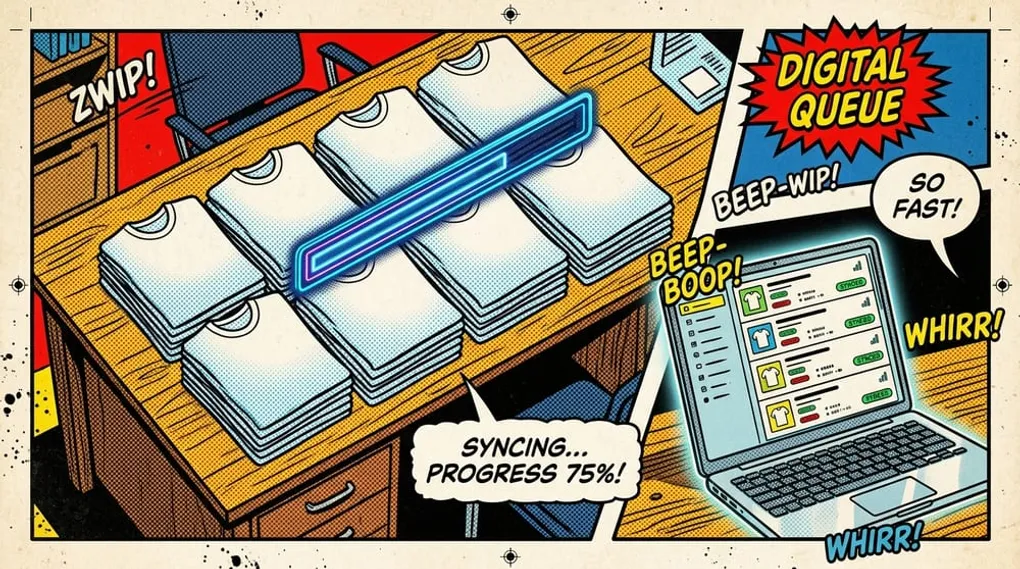
If batch mockup generation is enabled on your account, you don’t have to export these one by one. You can select up to 20 products at a time and batch-submit them. Choose whether you want PNGs or WebP files. The system queues the jobs, and you can watch the status update from queued to running, and finally to done.
Keep in mind that your final mockup quality heavily depends on your input resolution. Garbage in, garbage out. Start with high-res files if you want crisp lifestyle images.
Step 5: Publish and monitor
With your mockups ready and your variants mapped, initiate the publishing job.
Mockup Maestro runs strict readiness checks before anything hits Shopify. It verifies that Printify is connected, your shop is selected, you have at least one enabled variant, and you aren’t exceeding the 100-variant limit. You can read more about how Shopify handles product images and variants to understand why matching your data properly is so critical.
Don’t just walk away, though. Open the /dashboard/publishing-status page. This is your command center. If a job hits a snag, it drops into a failed state. You can spot the error, fix the variant mapping, and hit retry.
Cleaning up with the Shopify bulk editor
Sometimes things change after a product goes live. Maybe your blank costs went up, or you need to reorganize your collections for a holiday sale.
Instead of editing those listings manually in Shopify, use the bulk product workflow. You can queue up bulk changes for product fields, variant pricing, and collection mapping. The realtime tracker shows you exactly which jobs are done and which hit an error, keeping your store data perfectly in sync without the manual grind.
See more tips on managing POD catalogs at scale.
Ready to Automate Your POD Workflow?
Stop spending hours on manual uploads. Push 100 products to Shopify in minutes — get started today.
Frequently asked questions
Do I need a separate app to resize my designs for bulk upload?
No. By using Print Area Templates inside Mockup Maestro, you configure your boundaries once. The system applies your designs to the correct printable area automatically during the setup flow.
Is batch mockup generation available for every user?
Batch mockup submission is a feature-gated capability within the Unified Mockup Generator. Check your account settings to see if your plan includes access to multi-product batching.
What happens if a bulk publish job fails?
Your entire catalog doesn’t break. The specific product job simply moves to a failed status in the publishing dashboard. You can review the issue—like a missing print file or an unsupported variant—and retry the publish job directly from the queue.
How many designs can I upload at once?
The queue handles up to 50 files per drop, with a maximum file size of 50 MB each. If you lose connection, the system will attempt up to 3 retries automatically.
Next steps
Related workflow pages
Turn this guide into a working production path inside Mockup Maestro.
Printify automation software
Automate the product setup steps around Printify while keeping fulfillment safe.
Printify bulk upload
Build reusable product templates and bulk upload Printify-ready products with fewer clicks.
Printify integration
See how Printify fits into a cleaner POD production workflow.
Pricing
Compare plans against the manual labor cost of publishing at scale.