

Guides
How to Connect Printify to Shopify: Clean Setup Guide (2026)
Learn how to connect Printify to Shopify using the official app, avoid duplicate store errors, and sync products successfully.
How to Connect Printify to Shopify: Clean Setup Guide (2026)
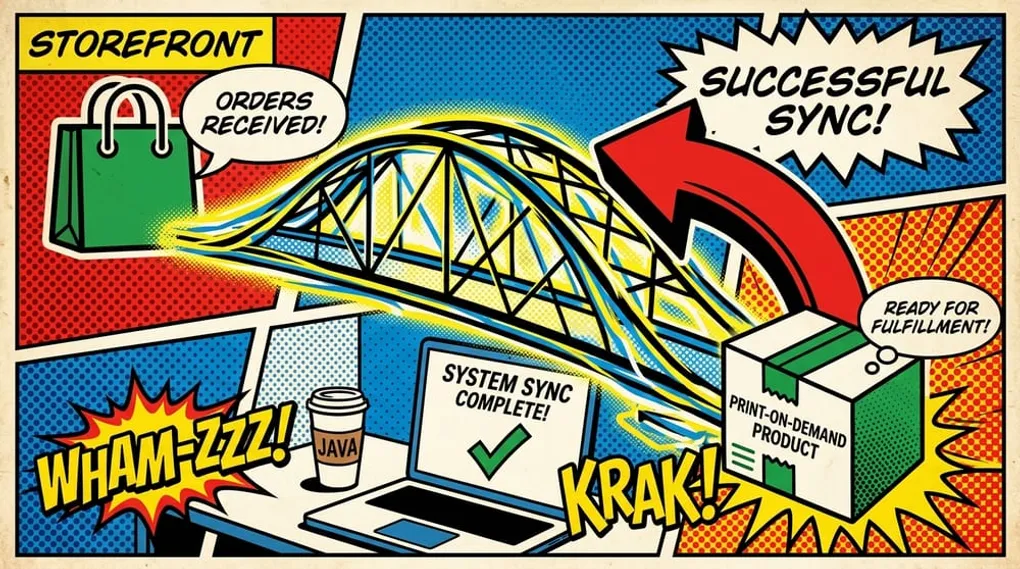
Connecting Printify to Shopify happens directly through the Shopify App Store. You simply install the Printify app, log into your existing account, and authorize the integration. But watch out. If you click the wrong button during setup, you’ll accidentally create a blank duplicate store, stranding all your existing products and templates.
This guide walks you through the exact steps to link your accounts safely. It also shows how to verify the sync before you move into automating your Printify workflow.
Key takeaways
- Use the App Store: Always initiate the connection from Shopify, not the Printify dashboard.
- Log in, don’t sign up: The number one mistake is accidentally creating a new Printify account during the install flow.
- Verify the sync: Always check your Printify ‘My Store’ dashboard to confirm Shopify is active before publishing products.
- Set shipping profiles: After connecting, configure your shipping rates immediately to avoid checkout errors.
Why the standard setup path causes friction
Clicking “connect” sounds simple. It isn’t always.
Every week, sellers flood the Shopify Community forums with the exact same panic. They tried to connect their accounts, and suddenly their entire Printify catalog disappeared.
They didn’t actually lose their products. They just fell for the most common technical trap in the print-on-demand ecosystem. When you install the app, the system prompts you to log in. If you use a different email address, or hit “Sign Up” instead of “Log In”, Printify instantly generates a brand-new, empty workspace and attaches that to your Shopify store.
Your real workspace gets left behind. You can’t sync products, and your orders won’t process. Fixing it requires disconnecting the app, logging out completely, and starting over. It’s an annoying roadblock. But it’s entirely preventable if you follow the right sequence. For more context on how the two platforms work together, check out our Shopify vs Printify guide.
Prerequisites for a clean connection
Before you start clicking buttons, get your accounts in order.
First, make sure your Shopify store is active. You don’t need a paid plan yet, but you must be past the initial setup wizard. Second, open a new browser tab. Log into your actual, primary Printify account. Keep that tab open. This simple step prevents the browser from routing you to the wrong login screen during the connection flow.
How to connect Printify to Shopify the right way
Forget manual API keys. That method is outdated and prone to breaking. The only supported method in 2026 relies on the official Shopify App Store integration.
Step 1: Install the Printify app
Go to your Shopify admin dashboard. Click on Apps in the left sidebar, then search for Printify. This redirects you to the Shopify App Store. Click Install.
Shopify will display a privacy and permissions screen detailing what the app can access. Review it, then click Install App to proceed.
Step 2: Bypass the signup trap
This is the danger zone. After you click install, Shopify redirects you to Printify.
Because you already opened a tab and logged into Printify, the system should automatically recognize your active session. It will ask if you want to connect your Shopify store to this specific workspace.
If you didn’t keep that tab open, you’ll see a login screen. Look closely. Do not click “Create an account.” Click Log in and use the exact credentials attached to your existing product catalog.
Step 3: Authorize the link
Once you confirm the account, Printify asks for final authorization to manage products and orders on Shopify. Click Allow. The screen will refresh, and you’ll land back in your Printify dashboard.
Essential verification: checking your sync
Don’t assume it worked just because you didn’t see an error. You need to verify the product synchronization.
Inside Printify, look at the top-right corner. You should see a dropdown menu listing your stores. Click it. Your Shopify store name must appear there with a green “Connected” indicator.
Next, try pushing a single test product to Shopify. Go to My Products, select an item, and click Publish. Wait two minutes. Then open your Shopify admin, click Products, and see if the item appeared. If it shows up with the correct title, images, and pricing, your data is flowing perfectly.
Troubleshooting the “duplicate store” error
If you checked your Shopify admin and the products aren’t there, the likely cause is a duplicate store created during setup.
Don’t panic. You can fix it.
- Go to your Shopify admin, click Settings, then Apps and sales channels.
- Find Printify, click the three dots, and select Uninstall.
- Go back to Printify, click the store dropdown, and select Manage My Stores.
- Find the accidental duplicate store and click Disconnect.
- Log out of Printify completely.
- Start this entire guide over from Step 1, paying close attention to Step 2.
Moving faster after you connect
Getting connected is just the first hurdle. Actually running a profitable print-on-demand business requires constant design output and store operations. Bouncing between Canva, Printify, and Shopify gets exhausting fast.
That’s where Mockup Maestro changes the game.
Once your store integrations are connected, you can run your entire operation from one centralized dashboard. Instead of tool-hopping, you can use our built-in AI tools to generate designs, organize them in a library, and apply them directly to product templates.
You can even spin up striking marketing visuals with the Bulk Mockup Generator, queue up the products, and publish them straight to your connected stores. You get clear status tracking for every job, so if a Shopify publish fails, you simply click retry. If your next bottleneck is catalog media, follow our bulk Printify-to-Shopify sync guide.
If you’re ready to scale your operations, check our pricing plans to find the right automation tier for your volume.
Frequently asked questions
Does it cost money to connect the app?
No. The Printify app is free to install. You only pay Printify when a customer places an order and they manufacture the product. You still have to pay your standard Shopify subscription fees, of course.
Can I connect multiple Shopify stores to one Printify account?
Yes. If you run different niche brands, you can connect multiple Shopify stores. Just go to Manage My Stores in Printify, click Add a new store, and repeat the installation process for the second Shopify URL.
What is Printify Connect?
Printify Connect is an optional service where Printify handles basic customer support for your print-on-demand orders (like returns for misprints). It is separate from the basic Shopify app connection, which just syncs products and orders.
Ready to Automate Your POD Workflow?
Stop spending hours on manual uploads. Push 100 products to Shopify in minutes - get started today.
Next steps
Related workflow pages
Turn this guide into a working production path inside Mockup Maestro.
Printify automation software
Automate the product setup steps around Printify while keeping fulfillment safe.
Printify bulk upload
Build reusable product templates and bulk upload Printify-ready products with fewer clicks.
Printify integration
See how Printify fits into a cleaner POD production workflow.
Pricing
Compare plans against the manual labor cost of publishing at scale.